
MQTT Protocol
How ESP32 devices communicate with Assistant Core through MQTT Gateway.
Overview
ESP32 devices use MQTT Gateway to keep a realtime connection with Assistant Core. The gateway sits between devices and the platform, allowing devices to send status, start voice sessions, stream audio, and receive commands from the assistant.
At a high level, the connection has three parts:
- MQTT: the control channel for status, events, and commands.
- UDP audio: the low-latency audio channel for voice sessions.
- Internal connection to Assistant Core: the gateway forwards device sessions into the conversation system.
Connection Architecture
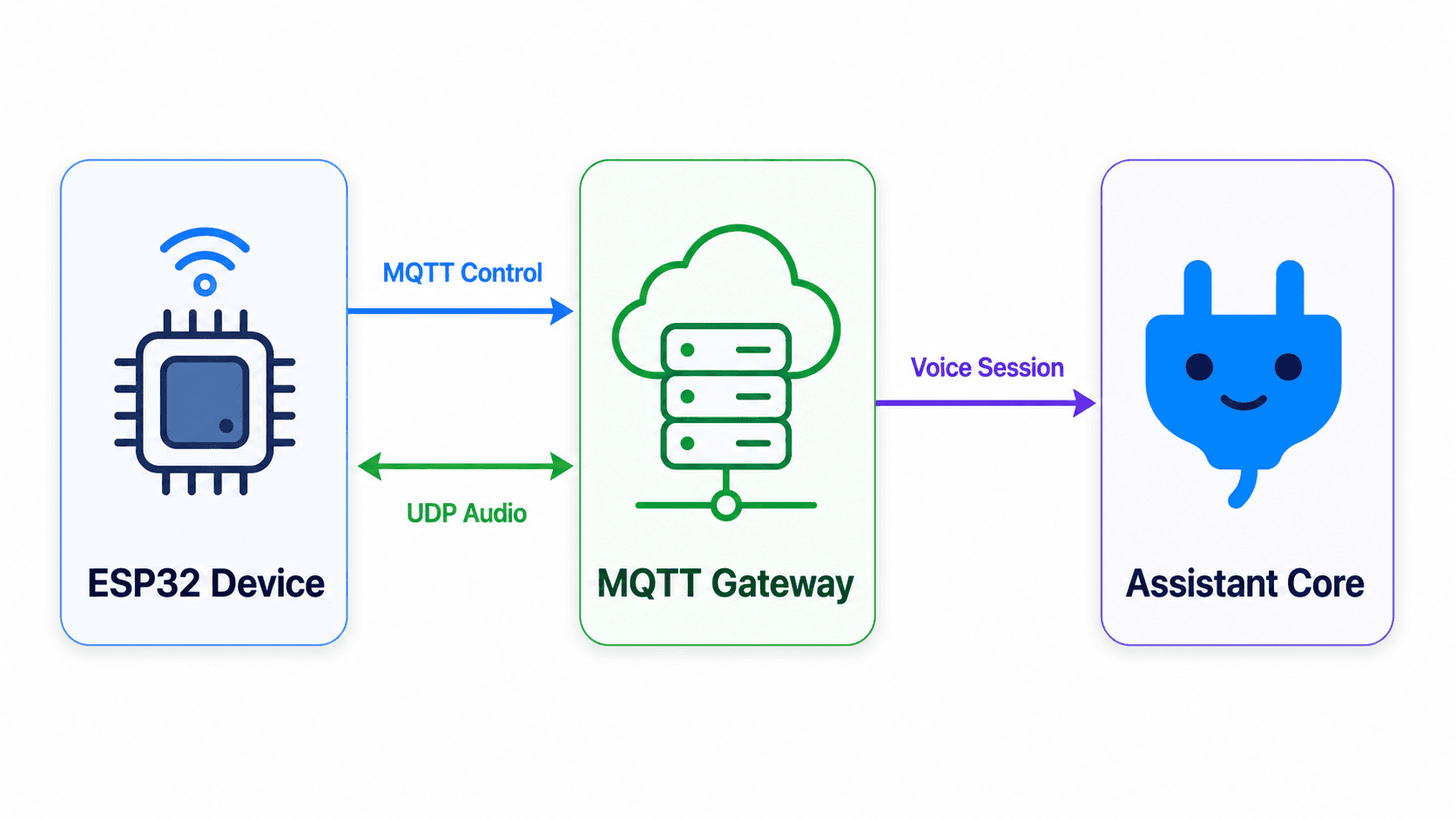
The device does not need to talk directly to every backend system. It connects to MQTT Gateway, and the gateway forwards status, audio, and commands to the correct assistant session.
How It Works
1. The device fetches connection settings
On startup, the device checks OTA to receive system time, firmware information, an activation code if it is not connected yet, and the gateway connection address.
2. The device opens the MQTT channel
The device uses MQTT to report online status, send events, and receive commands. This is the main control channel, not the continuous audio channel.
3. A voice session starts
When the user wakes the device or presses the talk button, the device sends a session-start signal. The gateway creates a matching session in Assistant Core.
4. Audio flows over UDP
During the voice session, microphone audio is sent over UDP to reduce latency. TTS audio from the assistant is sent back to the device through the audio channel.
5. Commands flow over MQTT
Commands such as status updates, interface changes, device-tool calls, or session close events are delivered over MQTT for the firmware to handle.
What Uses MQTT?
| Data group | Examples |
|---|---|
| Device status | Online/offline, ready to talk, in session |
| Device events | Wake word, button press, session started/ended |
| Assistant commands | Show text, change state, call a device tool |
| Session management | Open voice session, close session, report errors |
What Uses UDP Audio?
MQTT is a good fit for small control messages, but not for continuous low-latency audio. Audio is therefore carried on a separate UDP channel:
- The device sends microphone audio to the gateway.
- Assistant Core processes the conversation and produces a response.
- Response audio is sent back to the device for speaker playback.
This keeps voice responses faster and avoids blocking the MQTT control channel.
Common Connection States
| State | Meaning |
|---|---|
| Not connected | The device has configuration but is not connected to an assistant yet. |
| Online | The device is connected to MQTT Gateway and ready for commands. |
| In session | The device is streaming audio and receiving assistant responses. |
| Offline | The device lost power, lost network access, or cannot reach the gateway. |
Troubleshooting
- If the device is not online, check Wi-Fi, power, and firmware.
- If the device shows an activation code but cannot be used, check that it is connected to the right assistant.
- If the device is online but voice does not start, check that voice is enabled for the assistant and that the device has fresh OTA configuration.
- If audio is delayed or choppy, check network quality and whether a firewall blocks the audio connection.
- If device commands do not run, check whether the firmware supports that device tool.
This page explains the protocol architecture for operations and troubleshooting. Full authentication signatures, JSON payloads, and Docker deployment settings belong in internal deployment documentation.