
Devices
Flash Firmware
Flash firmware to ESP32 devices directly from your browser.
Firmware flashing requires Google Chrome or Microsoft Edge version 89 or later. Safari and Firefox do not support Web Serial API.
Supported Devices
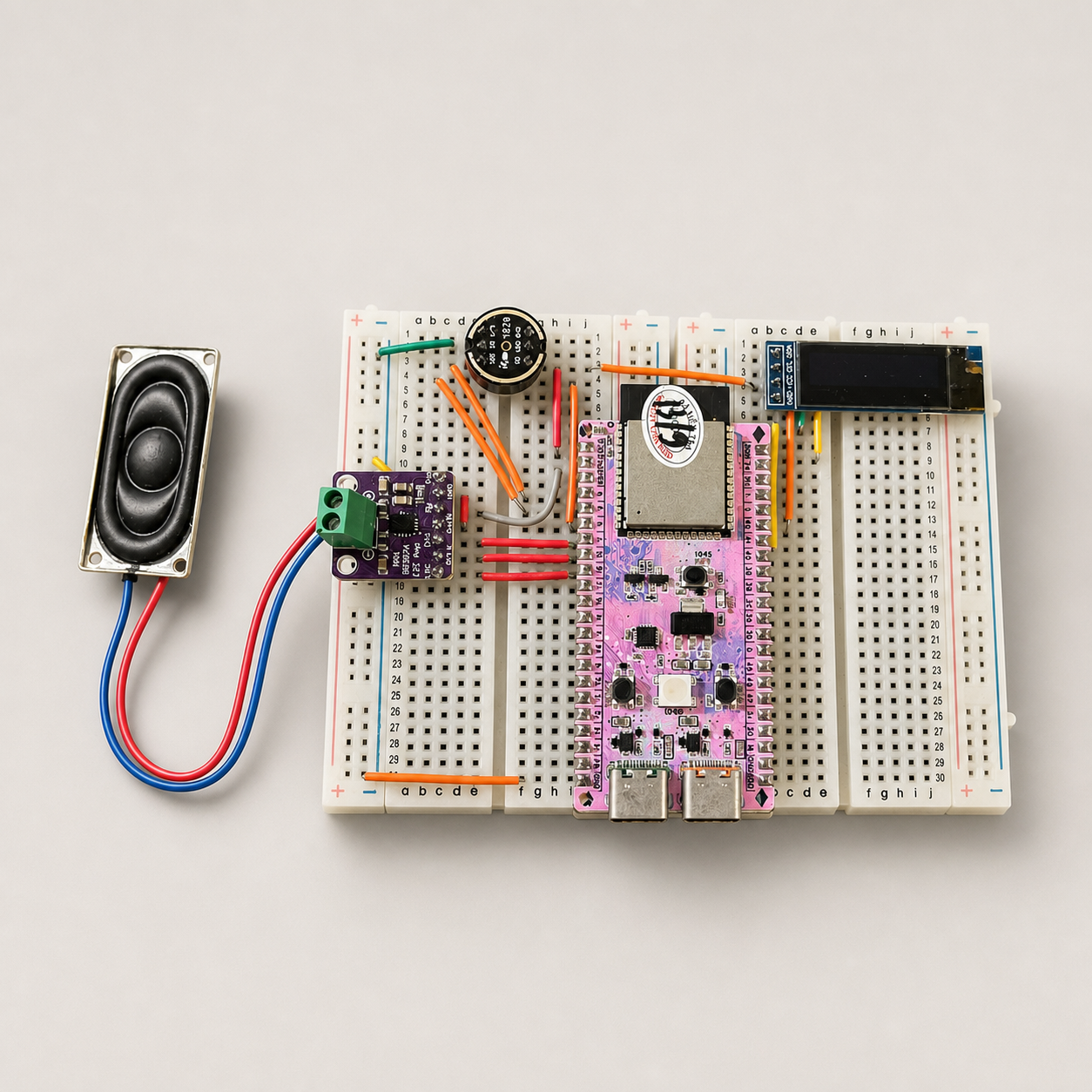
Bread Compact WiFi
Firmware: bread-compact-wifi
Key specs
ChipESP32-S3 (N16R8)
Flash16MB
PSRAM8MB (Octal)
ConnectivityWiFi 2.4GHz
Wake Word“Hi, Lily”
MicrophoneI2S MEMS
SpeakerI2S DAC
DisplayOLED SSD1306 128x32
Flash firmware
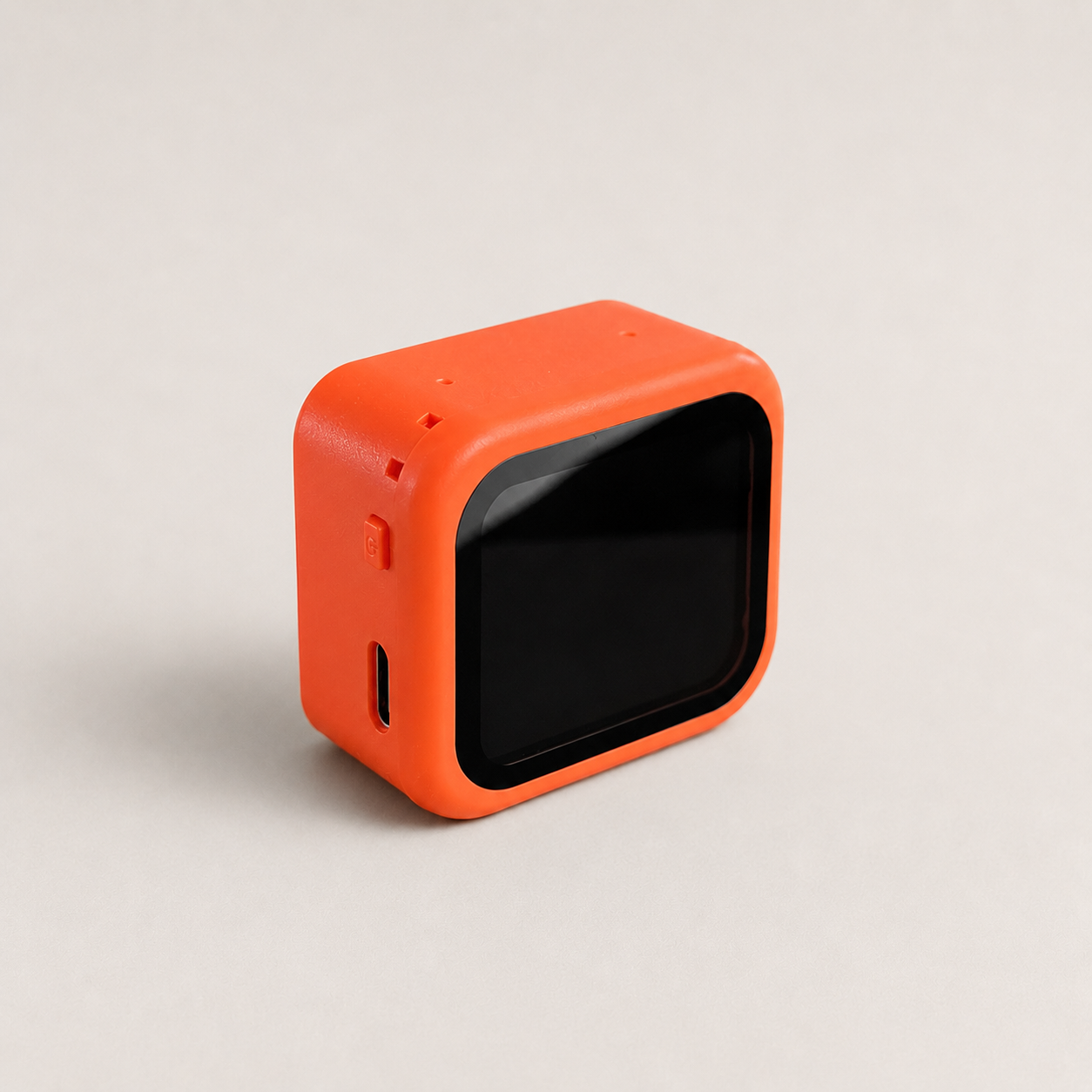
Assistant Core 1.83" 2-Mic
Firmware: assistantcore-1.83-2mic
Key specs
ChipESP32-S3 (N16R8)
Flash16MB
PSRAM8MB (Octal)
ConnectivityWiFi 2.4GHz
Wake Word“Hi, Lily”
Microphone2x ES7210 MEMS
SpeakerES8311 DAC + NS4150 Amp
DisplayNV3030B LCD 1.83" 284x240
Flash firmware
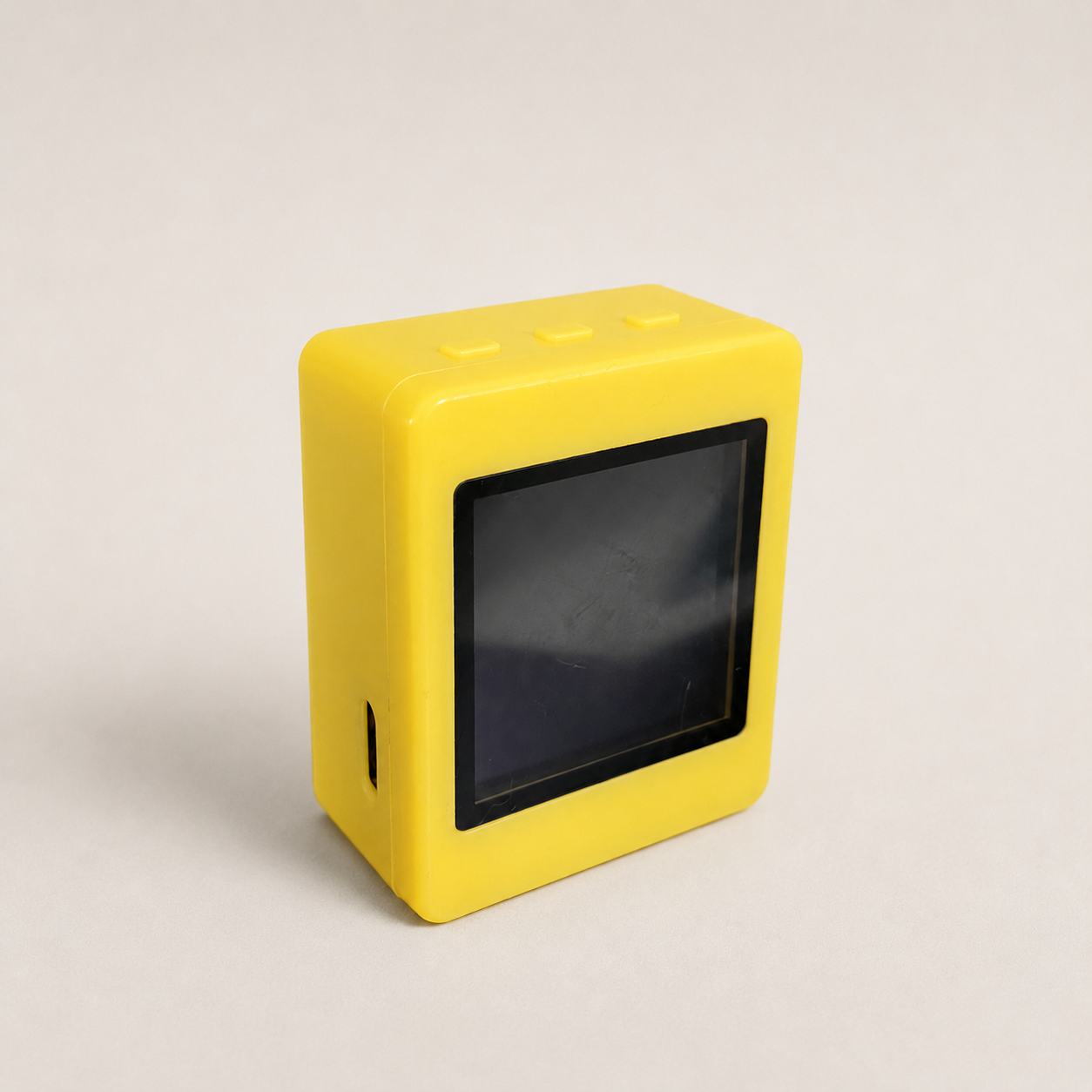
Assistant Core Cube 1.54" V1
Firmware: xingzhi-cube-1.54tft-wifi
Key specs
ChipESP32-S3 (N16R8)
Flash16MB
PSRAM8MB (Octal)
ConnectivityWiFi 2.4GHz
Wake Word“Hi, Lily”
MicrophoneI2S MEMS
SpeakerI2S DAC
DisplayST7789 TFT 1.54" 240x240
Flash firmware
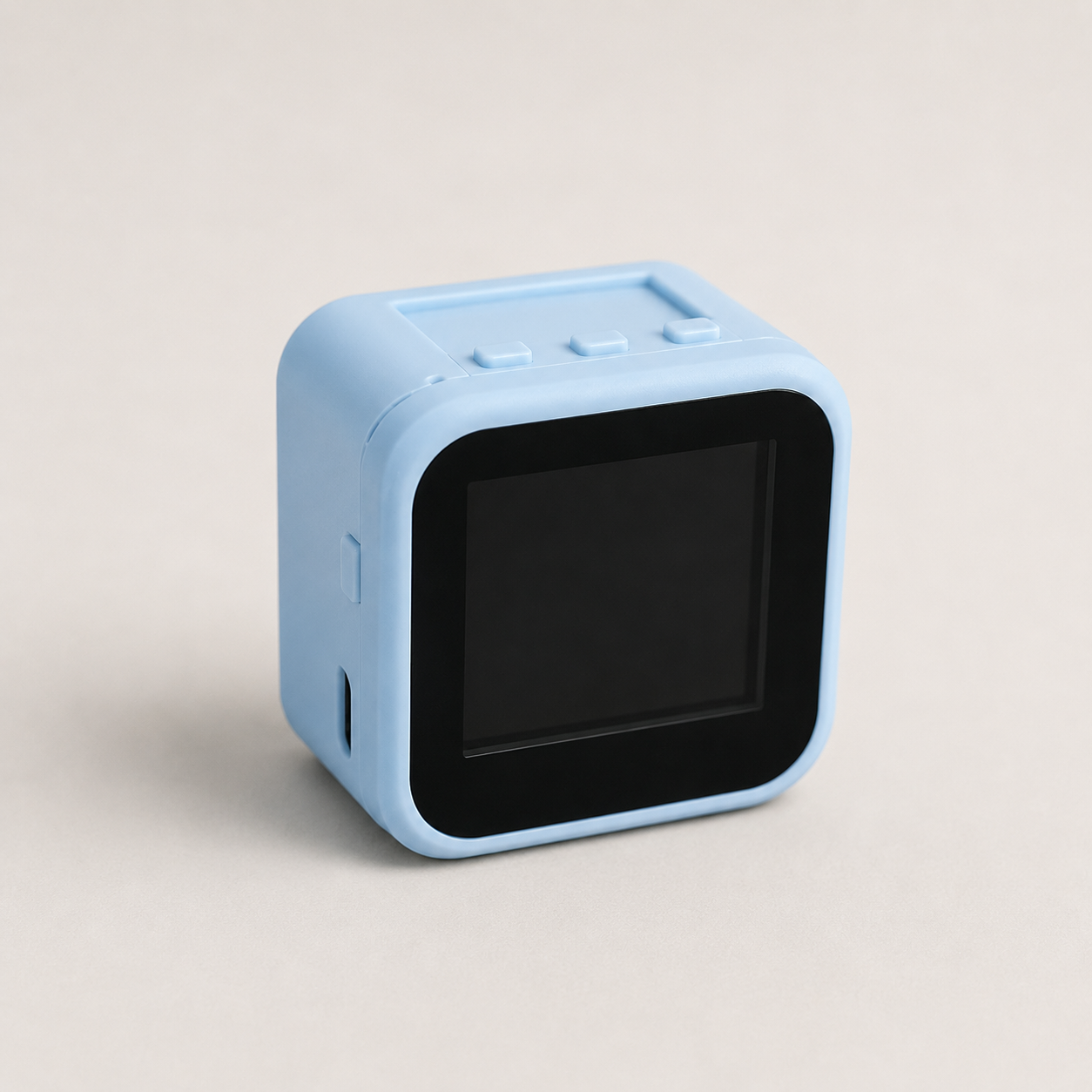
Assistant Core Cube 1.54" V2
Firmware: xingzhi-cube-1.54tft-wifi
Key specs
ChipESP32-S3 (N16R8)
Flash16MB
PSRAM8MB (Octal)
ConnectivityWiFi 2.4GHz
Wake Word“Hi, Lily”
MicrophoneI2S MEMS
SpeakerI2S DAC
DisplayST7789 TFT 1.54" 240x240
Flash firmware
Custom Firmware
If you have your own firmware file (.bin), use the custom flash tool.
How to Flash
- Connect the ESP32 device to your computer via USB cable
- Select the matching device from the list above
- Click Flash to Device in the device card
- Select the serial port when prompted by the browser
- Wait for the process to complete — the device will restart automatically
You may need to install the appropriate USB driver (CP210x or CH340) if your computer does not recognize the device.
After Flashing
- The device restarts automatically
- Connect to WiFi via BluFi or network configuration
- Register the device on the Admin Panel